
Access Text To Speech options
In Zone 01: Select the tree view and choose the player with the screen you want to modify.
In Zone 02: Click on the Text To Speech field.
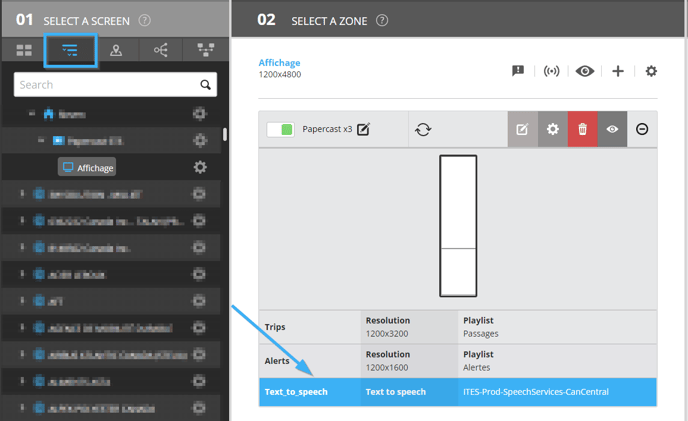
Control Panel
In Zone 03, you will find all the options you can access.
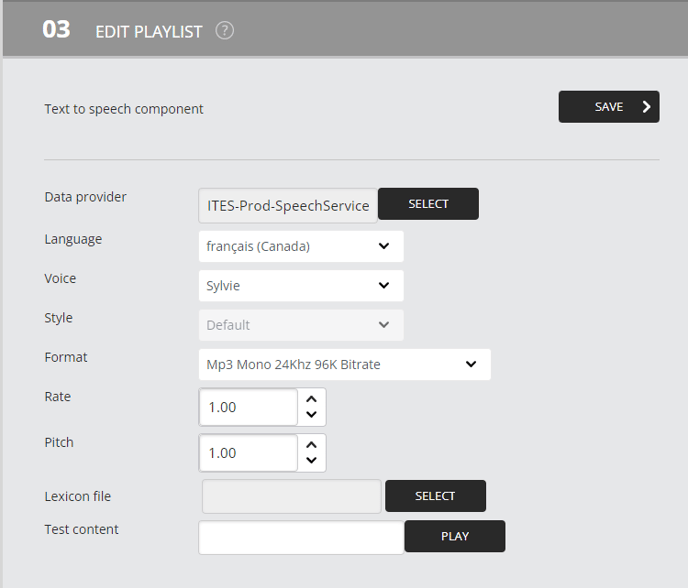
Data Provider
Important: The data provider is configured by the ITESMEDIA team and should not be modified
Language
The language corresponds to the speech language as well as the regional dialect.
Voice
The voice is often an aesthetic choice, but this option can also include regional accent choices depending on the chosen language.
Style
Note: At the time of writing, styles are not available for all languages
Choose the diction style that suits you. It is recommended to leave this option as default unless you have access to a style dedicated to dictating informational content.
Format
Choose the format that suits your needs. The format has a direct impact on sound quality as well as data size, so it is important to consider the network speed used by your player.
Rate
The rate is the speed of diction. A higher value increases the speed, and a lower value reduces the speed.
Pitch
A higher value will give a higher-pitched diction, while a lower value will give a deeper voice.
Lexicon File
The lexicon file is a custom SSML (Speech Synthesis Markup Language) pronunciation file.
Test Content
Type the word or phrase to test and press the “Play” button to start the diction.