
In ITESlive Studio, you can share folders with another Group or user, and choose what they can do with the items in each folder. The same sharing window and the same access levels are used for every type of folder. Only the way you open the folder is different.
Note: You share folders, not individual items. When you share a folder, every item in it is shared. A folder is also automatically shared with the Groups above it in your account structure.
Folders you can share
- Data source folders
- Template folders
- Playlist folders
- File folders
- Message folders (message library)
- Display group folders
- Role folders
- Font folders
- Color theme folders
- Data provider folders
- Alert threshold folders
- Login provider folders
How to share a folder
- Open the management window of the items that you want to share. For example, for data sources, click Configuration, then Data source management.
- Select the folder, then click Share.
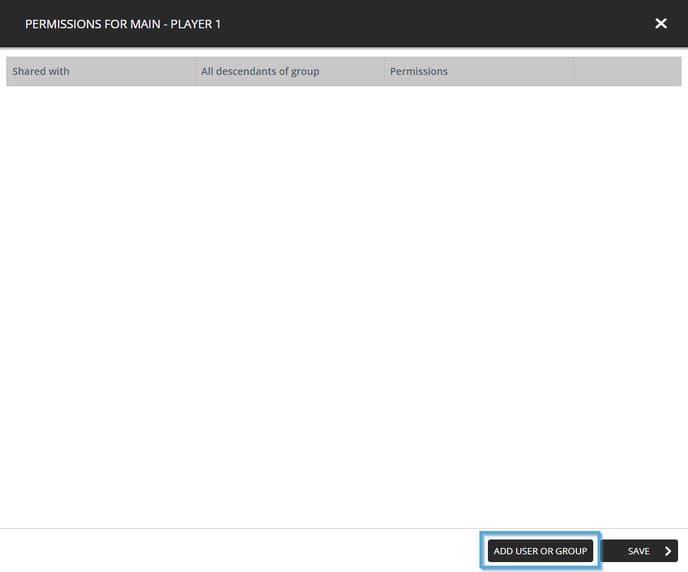
- Click Add user or group, at the bottom right of the window.
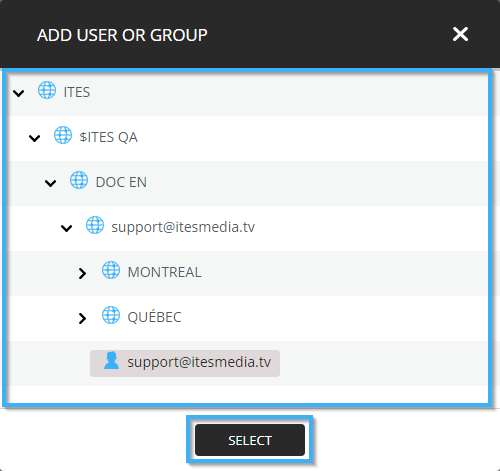
- Select the Group or user, then click Select.
- Set the access level and, for a Group, the All descendants of group option. See Access levels.
- Click Save, at the bottom right of the window.
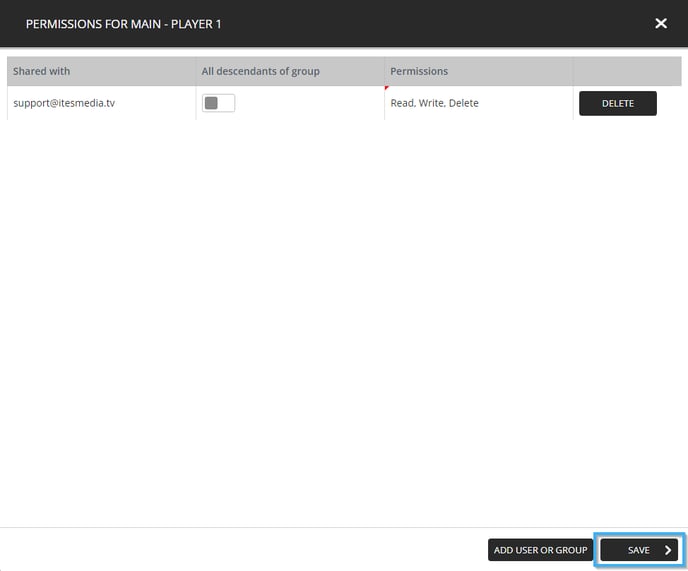
Important: The sharing list is exclusive. After you save, only the Groups and users in the list can work with the folder. Before you save, make sure that every Group and user who needs the folder is in the list.
Expected result
The Groups and users in the list can access the items in the folder with the access level that you selected.
Access levels
For each Group or user in the list, choose one access level in Permissions:
- Read: view and use the items in the folder, without changing them. For example, a Group with Read access to a data source folder can use its data sources in its templates and clips.
- Read, Write: view, use, edit and add items in the folder, without deleting them.
- Read, Write, Delete: full control of the items in the folder, including deleting them.
Other options in the list:
- All descendants of group: gives the same access level to every Group and user under the selected Group. This option has no effect when you select a user.
- Delete: removes the Group or user from the list. It is not an access level.
Related articles
- How to share a data source
- File folder management
- How to attribute restrictions on a zone's playlist
- Managing user permissions
Related information
Applies to: ITESlive, ITEStransit
Related topics: Group, User, Permission
Also known as: share, sharing, share a folder, access rights, share with a group, Read Write Delete, include descendants