
| Available with: |
| Windows Player: Pro, Premium Web Player: Pro, Premium LG webOS Signage Player: Pro, Premium Samsung SMART Signage Platform (SSSP / Tizen) Player: Pro, Premium BrightSign Player: Pro, Premium Android Player: Pro, Premium Linux Player: Pro, Premium |
Note: Playback modes are only available for clip playlists, not for regular playlists directly attached to screen layout zones.
If you are using a regular playlist attached directly to a screen layout, the playback behaviour is fixed and uses the Complete (all clips each loop) mode as describe below.
If you are not familiar with clip playlists, refer to this article: How to add a playlist to another playlist
Available playback modes
There are two playback modes for clip playlists:
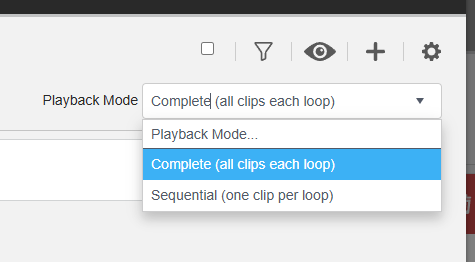
1. Complete (all clips each loop)
In Complete mode, all clips inside the clip playlist are played every time the playlist loops, before moving on to the next item.
Example:
- Clip: Image
- Clip: Weather
- Clip playlist (contains 10 clips)
- Clip: RSS
On each loop, playback will be:
- Image
- Weather
- All 10 clips from the clip playlist
- RSS
The full clip playlist is always played from start to end on every loop.
2. Sequential (one clip per loop)
In Sequential mode, only one clip from the clip playlist is played per loop. The next clip is played on the following loop.
Example:
- Clip: Image
- Clip: Weather
- Clip playlist (contains 10 clips)
- Clip: RSS
Playback behaviour:
- First loop: Image → Weather → Clip 1 → RSS
- Second loop: Image → Weather → Clip 2 → RSS
- Third loop: Image → Weather → Clip 3 → RSS
- And so on, until all clips inside the clip have been played.
This mode is useful for rotating content progressively without extending the duration of each loop.