
| Available with: |
| Windows Player: Starter, Pro, Premium Web Player: Starter, Pro, Premium LG webOS Signage Player: Starter, Pro, Premium Samsung SMART Signage Platform (SSSP / Tizen) Player: Starter, Pro, Premium BrightSign Player: Starter, Pro, Premium Android Player: Starter, Pro, Premium Linux Player: Starter, Pro, Premium macOS Player: Starter, Pro, Premium |
1. Adjust the volume in the clip settings
In the video clip settings, adjust the volume to the desired level.
By default, the volume is set to 0, which means that no sound will be played.
You can adjust the volume of a video using this field. The value can be set from 0 to 100. A value of 0 means that no sound will be played, even if the video contains audio. A value of 100 corresponds to the video's maximum volume.
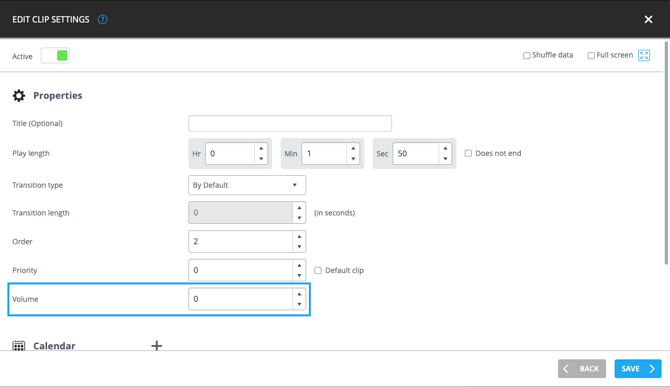
Here's how to access the clip settings window:
Clip Settings
2. Adjust the volume of the display player
The volume must also be configured on the display player.
You can manage the player's volume remotely from our software by sending a command. See the following procedure: Command Console.
This method allows you to control the sound independently on each player. For example, if a video is in a playlist used on multiple players, only players with a volume above 0 will play the sound.
You can also check your device's volume percentage in the section on the right.
To view this information:
- Display your devices in tree view.
- Select a player in the center section.
- The player's volume percentage will be displayed in the section on the right.
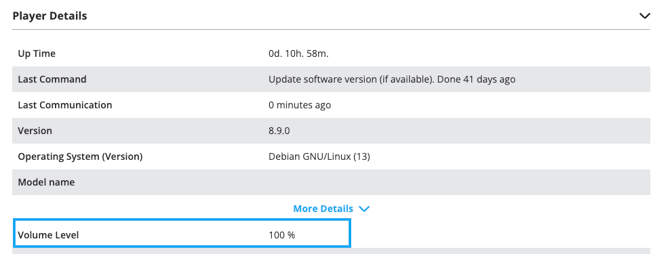
*This information is not available for all types of display players.
3. Adjust the display volume
The display volume must also be set to a value above 0 for the sound to play.
This setting cannot be controlled remotely through the software and must therefore be adjusted directly on-site.
4. If speakers are used, check the volume
Also check the volume of the device that plays the sound. This could be the display's built-in speakers, a soundbar, or another audio system.
This setting cannot be controlled remotely through the software and must therefore be adjusted directly on-site.