
It is important that your monitor’s time is set correctly, even if the time is not displayed on the screen, so that scheduled content plays at the correct time.
Tizen devices use two separate clocks:
-
Menu clock: Set manually through the device’s menu. It is usually not automatically synchronized and may not account for daylight saving time.
-
System clock: Used by applications and synchronized automatically, but most often only at device startup.
It is essential that both clocks are configured correctly and that daylight saving time is applied when required.
Please follow the steps below.
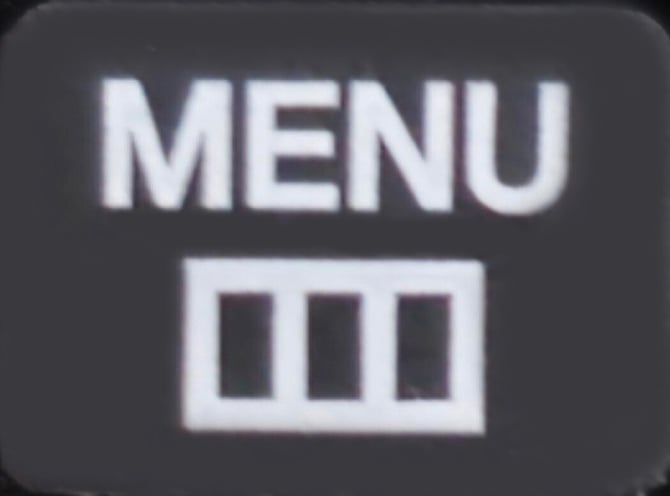
1. Press the "Menu" button on your remote.
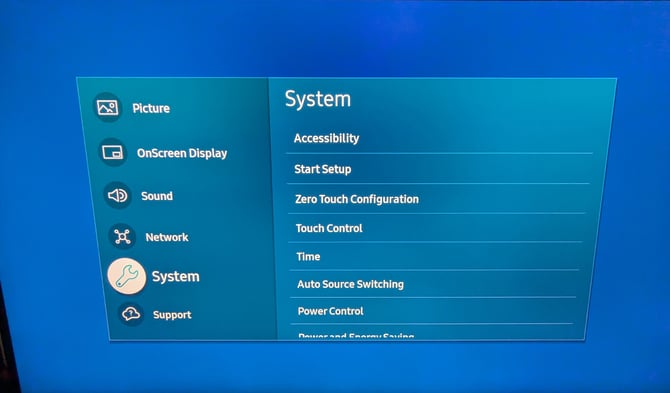
2. Select the "System" menu.
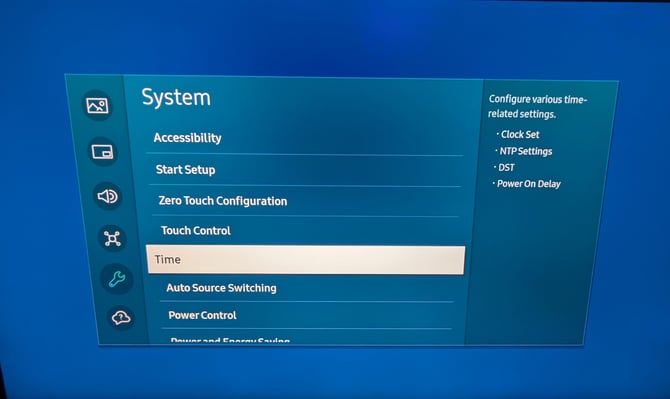
3.In the "System" menu, select the "Time" entry.
(Conditional depending on the region) Configure Daylight Saving Time (DST)
Important: Although it is possible to enable automatic daylight-saving time changes, this step is conditional and should only be performed if you are installing a display reader in a region that observes daylight saving time.
The values used in the following steps correspond to the Quebec region and are provided as examples only. These values vary depending on location and time zone. For more information, visit https://www.timeanddate.com/time/dst/.
4. Once in the "Time" menu, select the "Daylight Saving Time" entry.
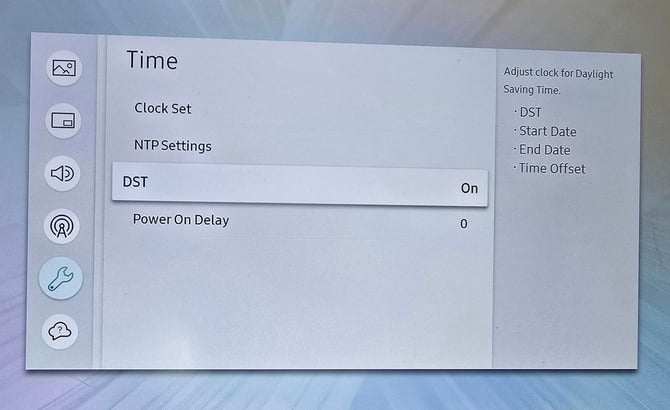
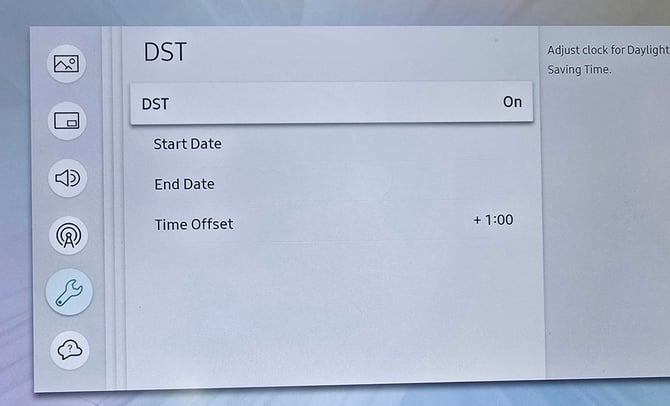
5. Enable daylight saving time and select "Start Date."
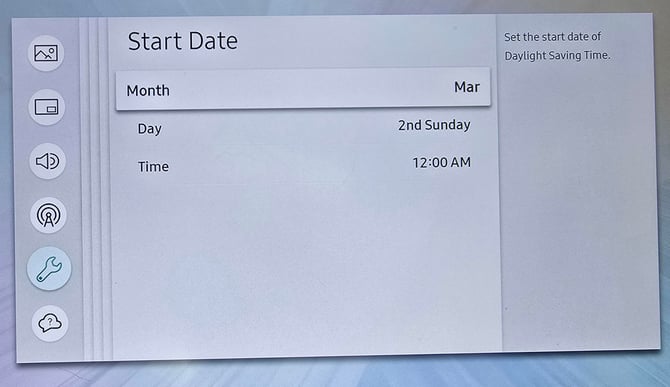
6. Select "Month" and choose the month when the time change occurs. Then select the day and choose the day on which the time change takes place.
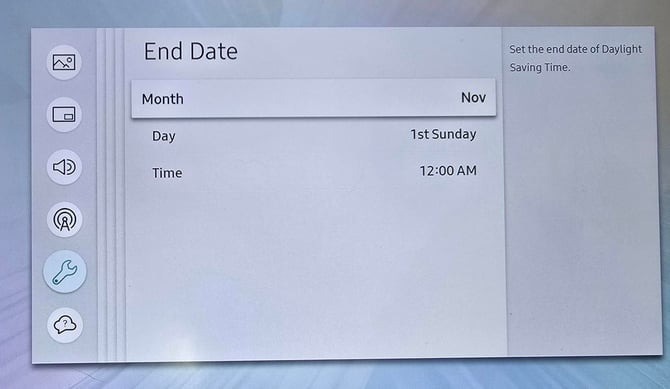
7. Return to the previous screen and select "End Date." Select "Month" and choose the month when the time change ends. Then select the day and choose the day on which the time change ends.
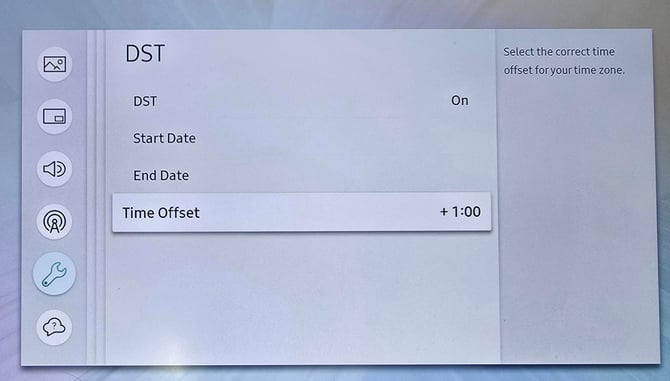
8. Return to the previous menu and ensure that the time zone correctly reflects the desired daylight saving time change.
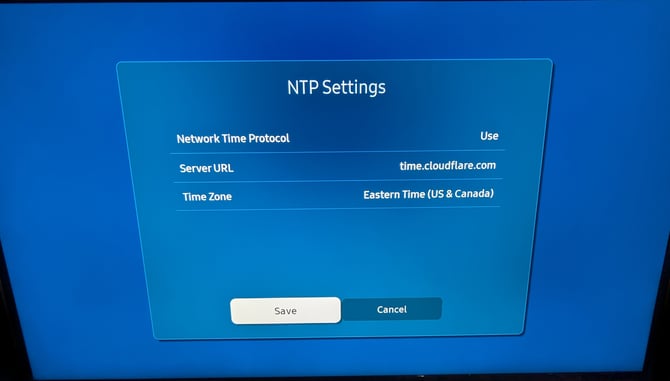
9. In the "Time" menu, select the "NTP Settings" entry.
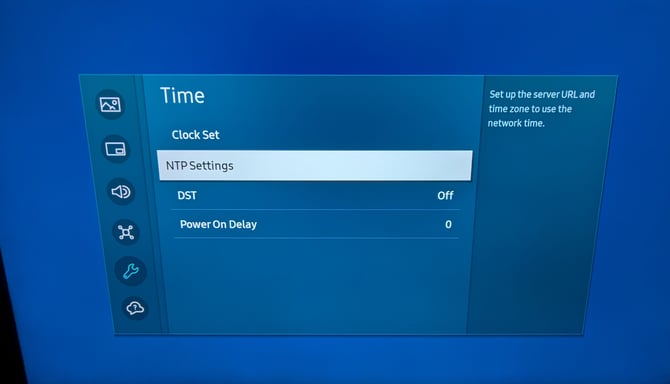
10. In the "NTP Settings" select the "Server URL" entry.
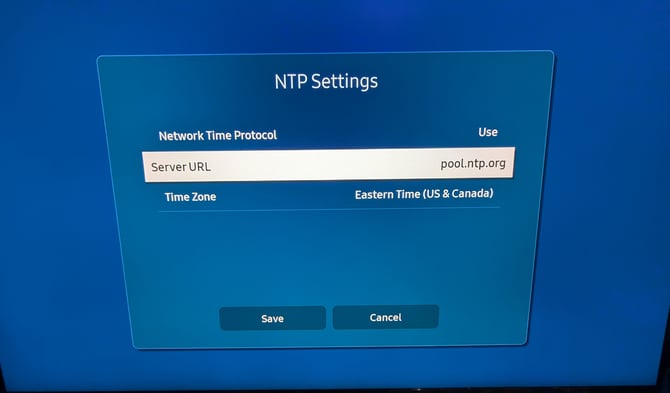
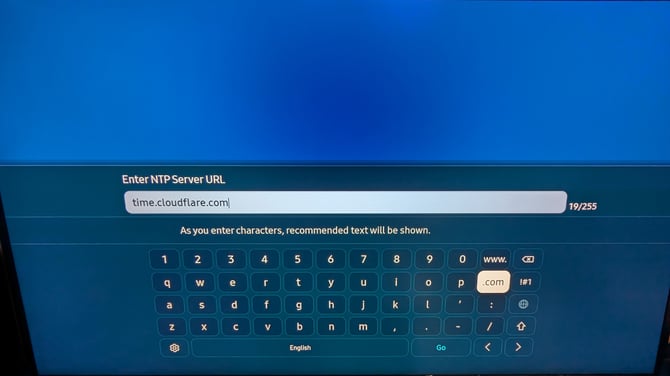
11. Enter the following URL: time.cloudflare.com
12. Once you are back in the "NTP Settings" menu, select the "Time Zone" entry, then select your time zone in the list.
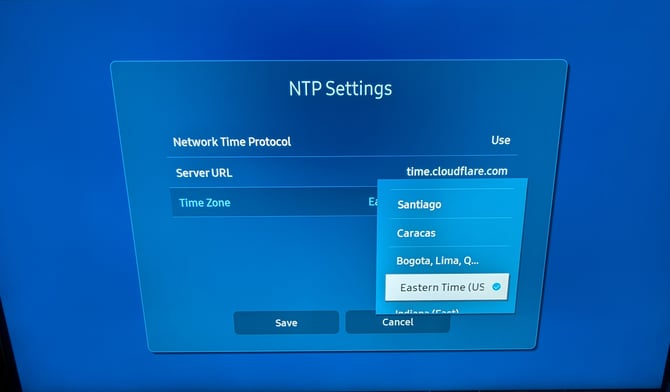
13. After having selected your time zone, select the "Save" button.
The monitor will then restart to reset the current time.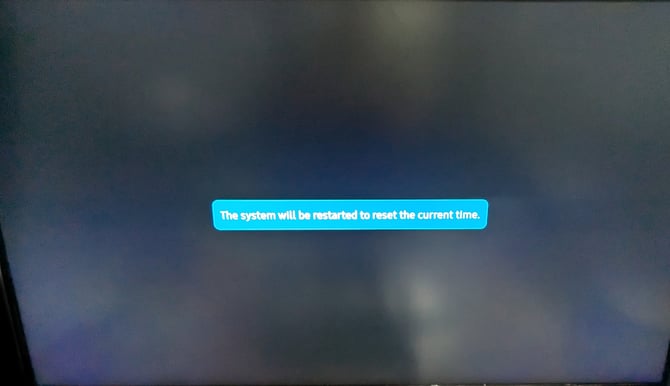
Restore the ITESlive display
3. Press Home or Source on the remote control.
-
If your monitor is running Tizen 7, press the Home button.
-
If your monitor is an older model, press the Source button.
2. Select ITESlive.
At the bottom of the screen, you will see the ITESlive application. Select it, and the display will restart automatically.