
| Available with: |
| Windows Player: Starter, Pro, Premium Web Player: Starter, Pro, Premium LG webOS Signage Player: Starter, Pro, Premium Samsung SMART Signage Platform (SSSP / Tizen) Player: Starter, Pro, Premium BrightSign Player: Starter, Pro, Premium Android Player: Starter, Pro, Premium Linux Player: Starter, Pro, Premium macOS Player: Starter, Pro, Premium |
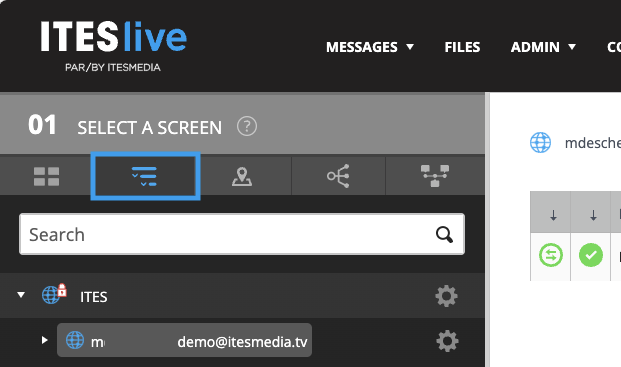
1. Open the Tree View
In section 01, click on the Tree View icon (the second icon).
2. Select the Affected Player
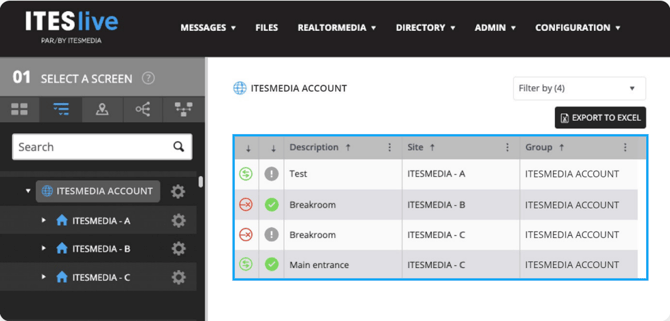
In section 02 (the center section), click on the player displaying the alert.
3. View the Alert Details
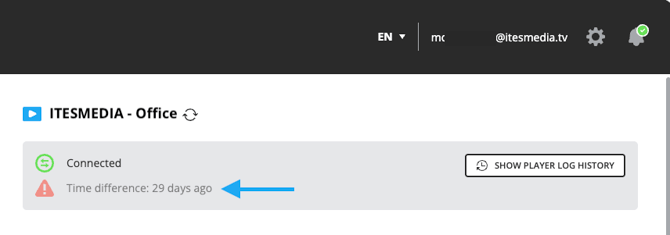
In section 03, you will find a description of the alert associated with the selected player.
Need More Information?
To learn the meaning of each alert and how to resolve it, please refer to the following article: