
Use a data source in a template to display information that comes from outside ITESlive Studio, such as the articles of an RSS feed. The data source describes how the information is structured, and the template defines where and how it appears on screen. Templates that use a data source are displayed with an RSS Clip or an External Data Clip. To learn what a data source is and how to create one, see How to create a data source.
Before you begin
- Data sources are available with the ITESlive Premium licence. For details, see Licensing options and features.
- Create the data source that you want to use. See How to create a data source.
Steps
- Open the template in the Templates Editor.
- In the toolbar at the top of the editor, click the data source button (the fourth icon from the left).
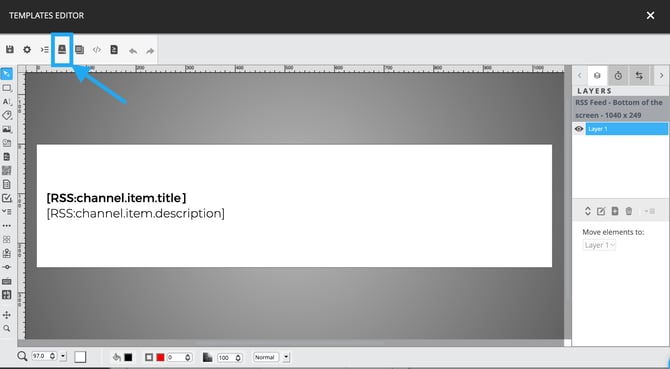
- Configure the data source settings. See Data source settings.
- In the text elements of the template, enter a reference for each piece of information that you want to display: the data source name, followed by the path of the information in the data source, between square brackets. For example, [RSS:channel.item.title] displays the title of each article of an RSS feed.
- Click Save (hard-disk icon) in the toolbar.
Expected result
The template displays the information from the data source in the places and with the formatting that you defined. When an RSS Clip or External Data Clip uses this template, it displays the current information from the data source.
Data source settings
- Data source name: identifies the data source used in the template. This name is not displayed on screen.
- Is optional: select this option when the template also contains content that does not come from the data source, such as text or an image. The clip is then displayed even when the data source contains no data.
- Items per slide: the number of items displayed each time the clip appears on screen. For example, with a value of 1, the clip displays one RSS article at a time.
- Main data node: the section (node) of the data source that contains the items to display. For an RSS feed, it is the node that contains the articles.
Example: RSS feed template
A template for an RSS feed displayed at the bottom of the screen can contain two lines of text: [RSS:channel.item.title] for the title of the article and [RSS:channel.item.description] for its description. With Items per slide set to 1, the articles are displayed one at a time.
Note: What happens when the data is unavailable is not configured in the template. It is configured on the clip, in the Configure external data window.
Related articles
Related information
Applies to: ITESlive, ITEStransit
Related topics: Data source, Template, RSS Clip, External Data Clip
Also known as: what is a data source, use data in a template, RSS template, external data template