
| Available with: |
| Linux Player: Starter, Pro, Premium |
You will need:
An AMD64 or ARM64 compatible PC, a stable internet connection, and a Linux distribution of your choice—Debian 13 is recommended for easier and more efficient customer support.
Installing a Linux distribution
Users are free to install the Linux distribution of their choice. However, we recommend using Debian for a more streamlined technical support.
If using another Linux distribution, make sure to install either a valid X11 Window Manage or a wlroots based Wayland compositor.
Warning: While installing Debian, DO NOT install any Desktop Environment. Be sure to uncheck any default desktop environment present during the installation process. A simpler Desktop environment then the provided options will be installed later.
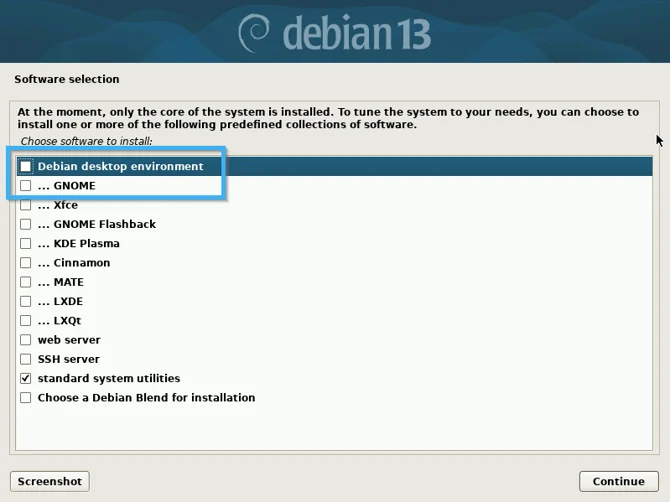
(Optional) Using the installation script
Download the installation script on the linux machine.
wget https://files-cac.itesmedia.tv/install/install_iclient.sh
Run the script has sudo.
sudo bash ./install_iclient.sh
Follow the instruction on screen. If done properly, reboot when prompted to. If you were unable to execute the installation script, proceed to the next steps.
Creating a display user
Note: The operating system must not have a pre-existing user account named iteslive.
You can choose to use an existing user but for security reasons, make sure that this existing user is not root and not a sudoer.
Open a terminal and type the following command to create a user called iteslive.
sudo useradd iteslive -m -s /bin/bash
Downloading the necessary packages
Enter the next commands:
sudo apt update
Then enter the following command and wait for the installation to conclude before moving onto the following steps.
sudo apt -y install unzip labwc lightdm grim libnss3 wlr-randr libasound2 alsa-utils pulseaudio alacritty polkitd kanshi
If using another distribution, make sure to install the following softwares based on your environment:
X11: xrandr, maim
Wayland: grim, wlr-randr
Wayland with Sway: grim, swaymsg
Downloading and install ITESlive
Important: pick the appropriate command based on your CPU architecture. If you are unsure which client you should contact our support team.
To download the x86_64 client, enter the following command
wget https://iteslive.tv/iteslive-linux-x64.zip -O /tmp/iteslive.zip
Or to download the ARM64 client, enter the following command
wget https://iteslive.tv/iteslive-linux-arm64.zip -O /tmp/iteslive.zip
Make sure to adapt the destination folder if using a different username.
Do not use sudo if you are already connected on the user that will run the software.
Then, enter the following commands
sudo unzip /tmp/iteslive.zip -d /home/iteslive/iteslive/
rm /tmp/iteslive.zip
sudo chown -R iteslive:iteslive /home/iteslive/iteslive/
Configuring the display environment
This section does not apply if using another distribution.
In your terminal, enter the following command:
sudo systemctl enable lightdm
Enabling autologin and autostart
This section assumes a freshly installed Debian 13 following our instructions, if you are using another distribution, you will need to look at your distribution's documentation on how to enable autologin and auto starting a GUI application.
In your terminal, enter the following commands:
sudo sed -i '/^\[Seat:\*\]$/a autologin-user=iteslive\nautologin-user-timeout=0\nautologin-session=labwc' /etc/lightdm/lightdm.conf
echo -e "cd ~/iteslive\n./iwatcher" | sudo tee /home/iteslive/.config/labwc/autostart
sudo chown -R iteslive:iteslive /home/iteslive/.config
Entering your activation PIN
Reboot your Linux player in order to lauch your display session and ITESlive. Then, enter your PIN once the prompt appears on screen.
See the article for generating a PIN for this step: Generating a PIN